
Have a Question?
Understanding Solution Usage data
This knowledge base article is about understanding solution usage data of self-help solutions from the Admin dashboard.
Navigate to the “Solution” section in Admin Dashboard
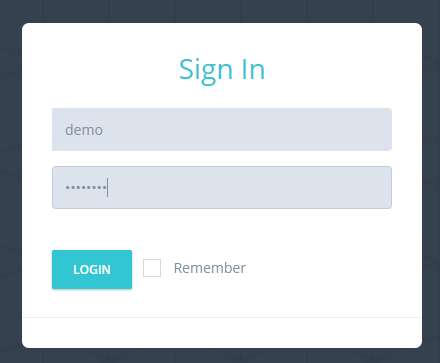
1 – Login to Self-Help dashboard using super admin credentials
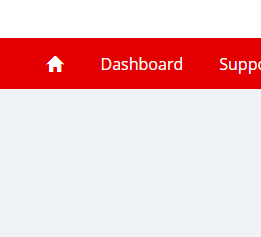
2 – Click on Dashboard
3 – Click on the “Self Help” tab, select “Analytics” and then select “Solution”
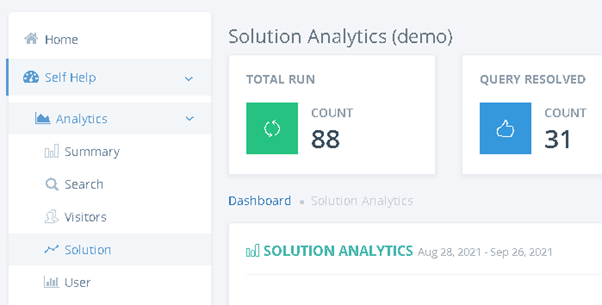
Solution Analytics
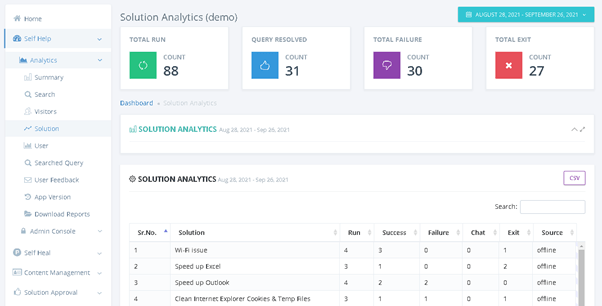
The upper section shows a summary of the Self-Help solutions–
1 – TOTAL RUN– Total number of solutions run by Self Help in the selected date range
2 – QUERY RESOLVED– Total number of issues solved using Self Help where the users have given the feedback that their issue was resolved using self help
3- TOTAL FAILURE- Total number of issues that could not be solved using Self Help where the users have given the feedback that their issue was not resolved using self help
4- TOTAL EXIT – Total number of issues having self help solutions where the user exited the solution in between
SOLUTION ANALYTICS
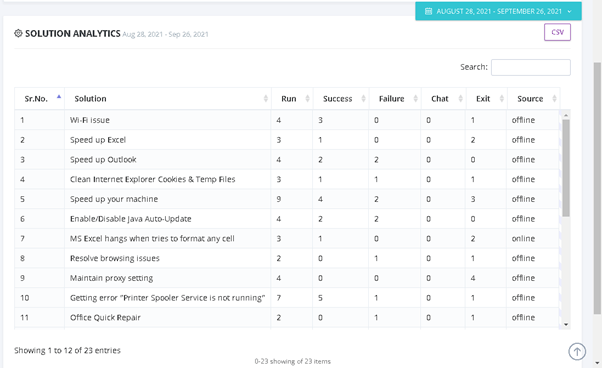
The lower section shows a detailed view of Self-Help solutions-
1– Sr.No.- Serial number of self-help solution
2– Solution- Name of the self-help solution
3- Run – Number of times self-help solution run by the user
4- Success- Number of times self-help solutions were successful, where the users have given the feedback that their issue was resolved using self-help
5- Failure – Number of times self-help solutions were not successful, where the users have given the feedback that their issue was not resolved using self-help
6- Chat– Number of times self-help solutions were run using chat
7- Exit– Number of times the user exited self-help solution in between
8- Source– The source of solution run, Offline: If the solution was run using the offline application, the source is offline, online: If the solution was run using the online portal, the source is online
To understand the solution analytics of a particular solution search for the solution name in the search option on the top right side of the screen
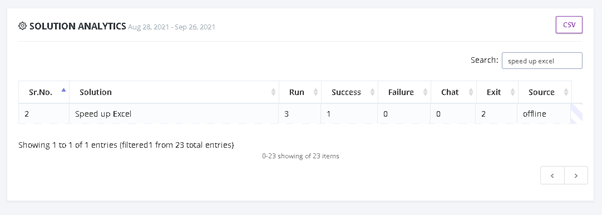
Note: All this information can be downloaded in Excel by selecting “CSV” on the top right side of the screen.