



Issue:
Windows already offers built-in facilities for saving copies of your data to an external hard drive or a shared network location that are simple to use. The procedures below will provide local data backup, which is useful for having rapid access to your information in the event that your hard disk fails or you unintentionally overwrite a file. Keep in mind that you’ll also need offsite or cloud backup.
Environment:
Windows Data Backup
Resolution:
1. Manually Backup your Files
Manually backing up your files and settings to removable or external storage is the easiest method. You may choose which files and settings to back up, as well as how often you wish to do so. External hard disks, DVDs, CDs, and USBs are examples of removable media.
To manually copy your files to a network location or to removable media on a computer, follow these steps:
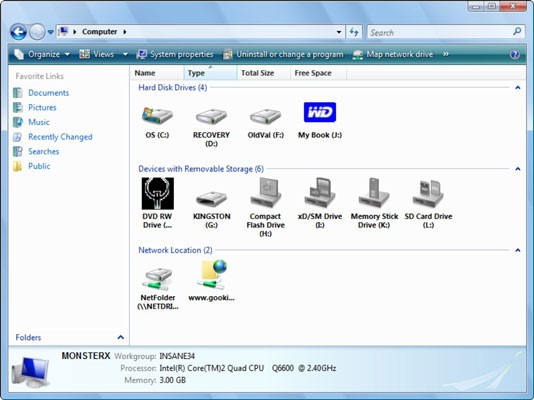
- Step 1: Click Start > My PC and then double-click the drive where you have the Windows OS installed.
- Step 2: Navigate to the Users folder, then click on the user folder containing the files you wish to back up.
- Step 3: Select the required folders from the user folder and copy them to a network location or removable storage.

2. Use the Backup and Restore Center
Follow these steps to back up using the Backup and Restore Center:
- Step 1: Search for Backup and Restore from the Start menu and click on it.

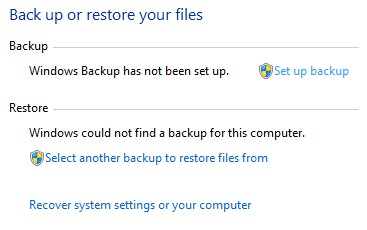
Note: If you’re asked to close programs, ensure you’ve saved any open documents before closing them. Alternatively, you can click Close Programs if you don’t have any documents to save.
- Step 2: Go to Backup or restore your files > Select Set up backup.
- Step 3: Choose a location to save your backup, click Next.


- Step 4: You have the option of letting Windows fix or choose yourself. Click Next.


- Step 3: Choose where to save then click on Save Settings and Run Backup. The backup will be made.
3. Create a Full System Backup
The methods outlined above will secure the most important folders on your computer, such as images and videos, but you may also want to generate a system image. A system image is a “snapshot” or identical copy of your whole hard disk, including Windows, system settings, programs, and all other files. So, if your hard drive or complete computer fails, you may restore everything to its original state in the event of a disaster.
- Step 1: Go to Control Panel > System and Security > File History
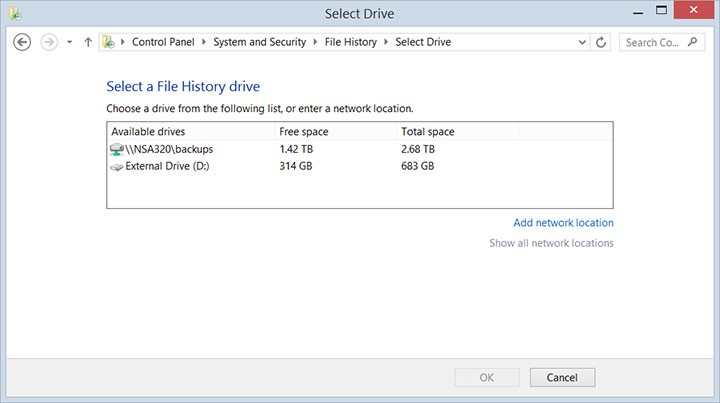
- Step 2: Choose a location to save the system image.
Note: You can save the image to a network location, an external device, or one or more DVDs. If you choose a network location, Windows will alert you that the data you’ve backed up “cannot be safely protected for a network target.” This simply implies that other users with access to the location may be able to view your system image. Make sure to save the image to a network location when the people accessing it are trustable.

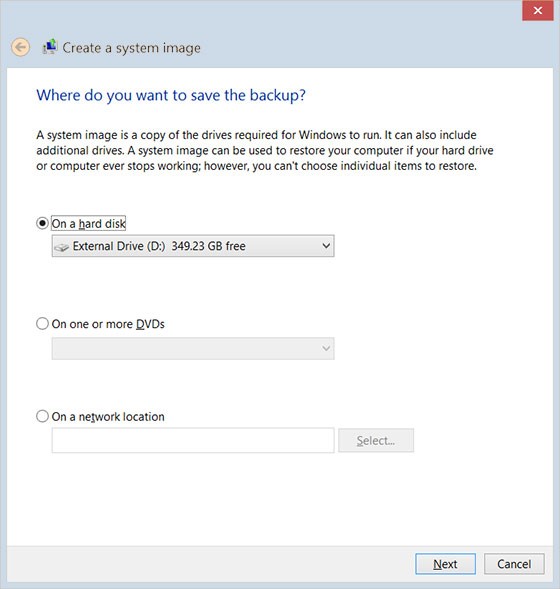
- Step 3: Confirm the backup location, create a system repair disk, and choose “Start Backup”.

Conclusion:
Data backup is very important in order to keep the information optimized. From the above steps you could see the different stages of data backup process, depending upon the engineer the data backup process can be scheduled manually or through cloud.
Similarly, Anakage Proactive cobots can backup “User Data files in Windows”, Proactive cobots optimize user data files and folders at regular intervals of time. Thus, keeping users on bay.
There is much more you can automate, check out our website for more details. Click here to see a video on “Proactive Solutions” , which is an agent at the end point that can troubleshoot without providing admin access to the users.
Would you want your users to self-resolve such issues?
Please fill up this form, let us connect and walk you through IT Help Desk Automation use cases.
READ MORE:
HOW TO MANAGE ENVIRONMENT VARIABLES IN WINDOWS?
HOW TO SETUP TIME ZONE IN WINDOWS?
HOW TO REPAIR CORRUPTED WINZIP FILE?
HOW TO RESOLVE BROKEN IMAGES IN EMAIL BODY ?
HOW ACCOUNT LOCKOUTS FOR VARIOUS CREDENTIALS CAN BE RESOLVED