
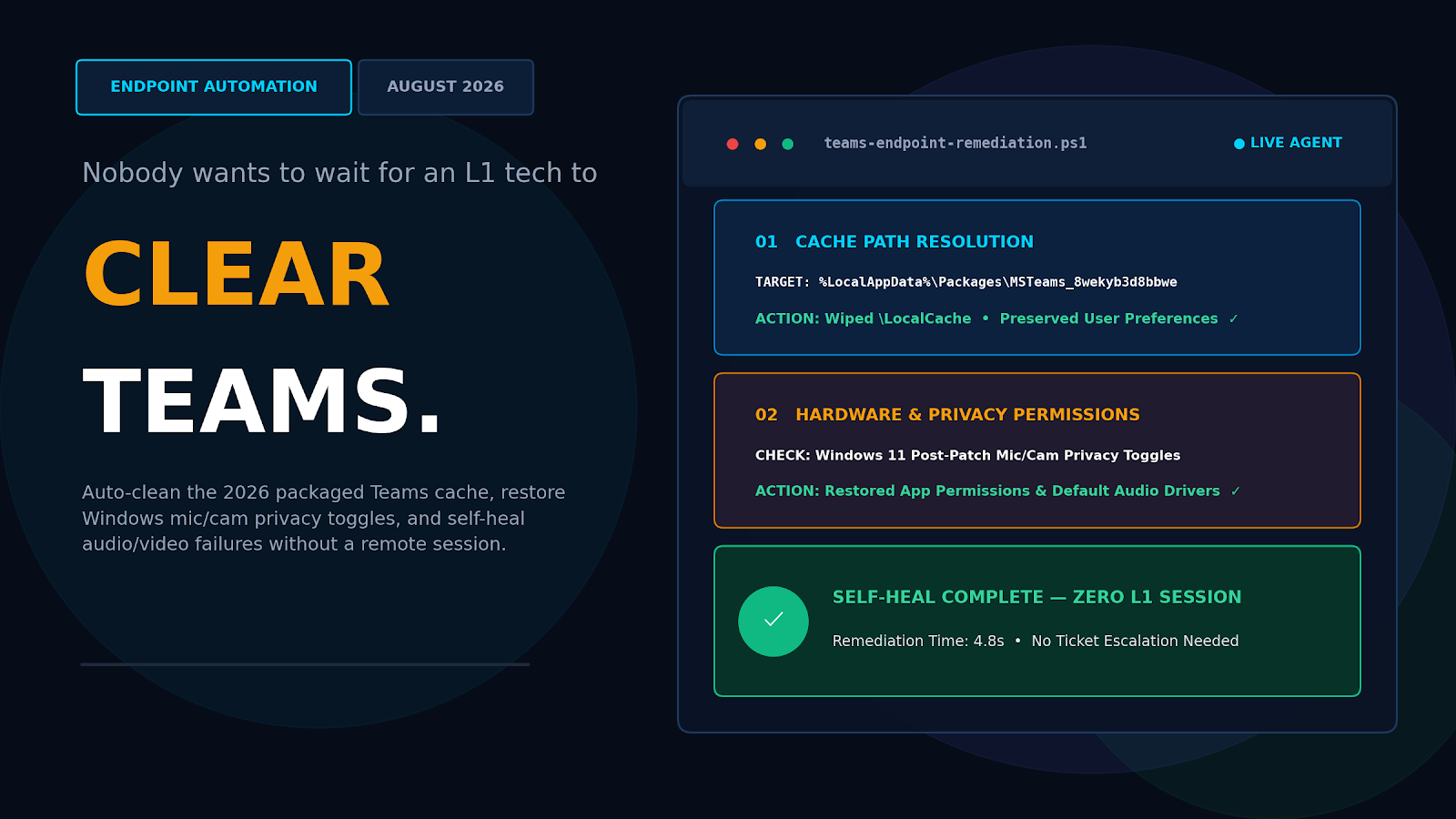
Most Teams cache and audio video tickets follow the same five or six causes, which means they can be scripted and run on the device instead of over a remote session. The fix is to detect the problem, run the correct action locally, and only escalate what genuinely needs a human.
There is one thing to check before you automate anything. Most cache clearing guides, and most L1 runbooks, still point at a folder that no longer exists.
The Cache Path Everyone Still Gets Wrong
Classic Teams stored its cache in %APPDATA%\Microsoft\Teams.
That app is gone. Microsoft ended support on 1 July 2024, and the client stopped working entirely on 1 July 2025.
New Teams is a packaged Windows app and keeps its data somewhere else entirely:
%userprofile%\AppData\Local\Packages\MSTeams_8wekyb3d8bbweThat MSTeams_8wekyb3d8bbwe part is the app’s package identity, and it is the same on every machine. You can use the path exactly as written.
Why this matters for your automation. If your script still targets the old path, it deletes nothing, reports success, and the user calls back. Check this first. It is the most common broken step in Teams runbooks right now.
One warning before you script a full delete
Deleting the whole package folder wipes personal settings. Users report having to set up their theme, notification and forwarding preferences again afterwards.
Some users found that clearing only the LocalCache subfolder fixed the problem without losing settings.
So build two levels into your automation. A light clean that targets LocalCache only, and a full reset for when the light clean fails. Do not lead with the nuclear option.
What Actually Causes Audio and Video Tickets
These fail for a small number of predictable reasons. Teams either does not know which device to use, the app lacks permission, the driver is outdated, or something else is blocking the connection.
Here is the list in the order worth checking.
1. Wrong device selected. Teams is using a device that is not the one the user is talking into. The fix is in Teams under Settings and then Devices, choosing the correct microphone from the dropdown.
2. Permission turned off. Windows privacy settings control this under Privacy and security, then Microphone. Microphone access and Let apps access your microphone both need to be on, and Teams needs to be listed.
This one has a nasty habit. Privacy toggles have been seen resetting after Windows updates, blocking device access with no warning to the user. If you get a cluster of Teams audio tickets a few days after patch night, this is usually why.
3. Driver problem. Outdated or corrupted audio drivers cause this, and the fix is either updating the driver in Device Manager or removing it entirely so Windows reinstalls a fresh copy.
4. Device muted or disabled at the Windows level. The device can be disabled in the Recording tab of sound settings, or the volume slider can simply be down.
5. A physical switch. Some laptops have hardware switches or function keys that cut the camera or mic, and these override software settings entirely.
6. Corrupted cache. Cache corruption can interfere with device detection, which is why cache clearing keeps appearing in audio video runbooks.
Notice that only one of those six needs a person. The physical switch. Everything else is a check and an action that a script can perform.
The Test That Saves You a Remote Session
That single check splits your tickets in two and tells your automation which path to take. Build it in early.
How to Automate This: Eight Steps
1. Pull your ticket data
Export three months of Teams related tickets. Tag them by cause: cache, audio, video, sign in, other.
You are looking for which two or three causes make up most of the volume. Automate those first. Ignore the long tail for now.
2. Fix your cache path
Check every script and knowledge base article that mentions the Teams cache. If any still say %APPDATA%\Microsoft\Teams, they are broken.
Update them to the packages path before you do anything else.
3. Write the detection checks
For each cause, decide what the device can check on its own:
- Is Teams running, and which version
- Is the microphone permission on in Windows privacy settings
- Is a device selected, and does Windows see it
- How large is the cache folder
- When was the audio driver last updated
Detection is the part most teams skip. Without it your automation fires blindly and annoys people.
4. Build the actions in order of severity
Order matters. Start with the least disruptive.
- Toggle the microphone permission back on
- Reselect the correct default device
- Clear LocalCache only, then restart Teams
- Full Teams reset through the app settings
- Reinstall the audio driver
Each step should re-run the detection check before moving to the next. If step 2 fixes it, steps 3 to 5 never run.
5. Handle the running app
Teams has to be fully closed before a cache clear. Not just the window. The user has to quit it from the system tray.
Your automation needs to close it properly, and warn the user first if they are in a call.
6. Give the user a way to trigger it
Put a self help option on the desktop. Something like “Fix my Teams” that runs the sequence without a ticket.
This is where most of your deflection actually comes from. Users would rather click a button than wait for a call back.
7. Watch for patch night patterns
Set an alert for a spike in Teams audio tickets in the 72 hours after a Windows update rolls out. That pattern usually points at reset privacy toggles, and you can run the permission fix across the fleet before users notice.
8. Measure against step 1
Compare Teams ticket volume and average handling time to your baseline. If volume has not moved, the usual reason is that users do not know the self help option exists.
What to Leave for a Human
Automation should escalate, not loop.
- Hardware switches and physically broken headsets
- Network and bandwidth problems, which look like audio problems but are not
- Anything that fails after the full reset
- Repeat cases on the same device, which usually mean something deeper
A good rule is that if the automation has run its full sequence twice on the same device in a week, it should raise a ticket rather than run a third time.
Where Anakage Fits
This is close to what our platform was built for.
Anakage runs detection and remediation on the device itself, so the sequence above executes locally without a remote session and without an agent dialling in. Users can trigger fixes from a self help prompt on their desktop, and admins can push the same actions across the fleet when something like a patch night permission reset hits everyone at once.
We are not the only way to do this. If you already run SCCM or Intune and have PowerShell skills in the team, you can build most of this yourself, and for a small estate that may be the sensible choice. Dedicated endpoint automation earns its cost when the ticket volume is high enough that maintaining your own scripts becomes the bottleneck.
The honest test is simple. Count the hours your L1 team spends on Teams tickets each month. If it is small, script it yourself. If it is large and growing, a platform is worth pricing.
FAQ
Where is the Microsoft Teams cache stored in 2026?
New Teams stores it at %userprofile%\AppData\Local\Packages\MSTeams_8wekyb3d8bbwe. The old classic Teams path under %APPDATA%\Microsoft\Teams is no longer used, because that client was retired in 2025.
Does clearing the Teams cache delete my settings?
Deleting the whole package folder does. Personalisation like theme and notification preferences has to be set up again. Clearing only the LocalCache subfolder often fixes the issue without that loss.
Why does Teams audio break after a Windows update?
Privacy toggles for microphone and camera access have been observed resetting after updates, which blocks Teams from using the device without telling the user.
How do I know if a Teams problem is the app or the hardware?
Have the user join a call on Teams web. If it works there, the problem is in the desktop app. If it fails there too, look at the device, drivers or network.
Can Teams cache clearing be automated?
Yes. The path is fixed and identical on every machine, so the action is scriptable. The parts needing care are closing Teams properly first and choosing between a light cache clear and a full reset.
What causes most Teams microphone tickets?
Wrong device selected, missing permission in Windows privacy settings, and outdated drivers cover the large majority. Only hardware faults and physical switches genuinely need a person.
Should we automate this ourselves or buy a tool?
Count your monthly L1 hours on Teams tickets. Small volume with PowerShell skills in the team means scripting it yourself is reasonable. High and growing volume usually means maintaining your own scripts becomes the bottleneck.
Will this work on machines that are offline?
It depends on the tool. Anything that needs to reach a cloud service will not run on a disconnected device. Automation that executes locally on the endpoint will.
Teams tickets are repetitive, which is exactly what makes them worth automating. Start by fixing the cache path in your existing runbook, because that one change alone will stop a chunk of failed fixes and call backs.
If a large share of your L1 hours goes on repeat endpoint issues like these, we run a 30 minute walkthrough of how the detect and fix approach works.
Sources
Teams cache paths: Microsoft Learn, clear the Teams client cache · Rare Build Software on the 2026 path · Microsoft Q&A on new Teams cache
Audio and video causes: Microsoft Q&A on Teams microphone · Microsoft Q&A on Teams audio · Microsoft Q&A on audio settings · NetTech on privacy toggles after updates · Techlasi on Teams audio causes
Anakage: our own product documentation, 2026.